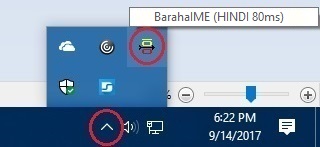
BarahaIME icon in Windows 10/11
BarahaIME icon in Windows 10/11
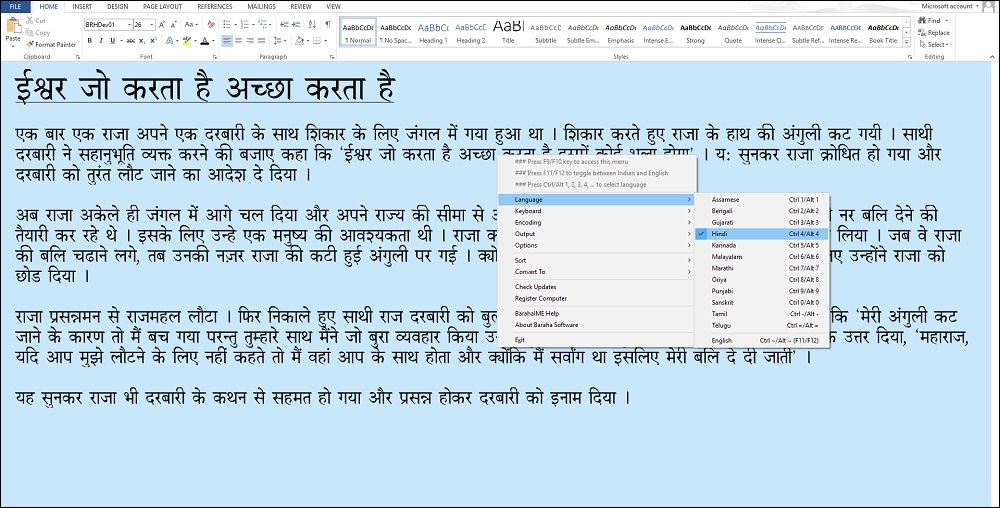
Using BarahaIME in MS Word
BarahaIME operates by sending Indian language character messages to applications. BarahaIME is compatible with MS Office, Open Office, Google Docs, Outlook, GMail, and other applications. BarahaIME offers many different keyboard layouts useful for both beginner and expert users. BarahaIME supports auto completion, sorting and text conversion from one script to another. When you run the program, BarahaIME icon appears at the bottom-right portion of the screen as shown above.
You can select desired Indian language or English using Settings -> Language menu, or Shortcut keys. You can switch between Indian language and English by pressing F11/F12 key.
Related topics: Auto Completion | ISO15919 | Shortcut Keys | Unicode vs ANSI
Menu commands:
You can access the menu commands by clicking on the BarahaIME icon. (Press F9/F10 key for accessing menu commands)
| Command | Description |
| Language->... | Select the language. After selecting the language, you should select appropriate fonts based on the language selected |
| Keyboard->... | BarahaIME supports following keyboards for all the scripts |
| Encoding->... | If you want to type Unicode text using fonts such as Tunga, Mangal, Nirmala UI, Arial Unicode MS, BRHKan01, BRHDev01, BRHTel01, ... then select Unicode encoding. If you want to use ANSI fonts such as BRH Kannada, BRH Devanagari, BRH Telugu, ... then select ANSI encoding. Read Unicode vs ANSI topic |
| Output->Indian Script | Select this command to get output in Indian script |
| Output->ISO15919 | Select this command to get output in ISO15919 encoding |
| Output->IAST | Select this command to get output in IAST encoding |
| Options->Full Letters | While editing, BarahaIME uses BACKSPACE messages to erase and regenerate new letters. This technique may not work in some programs such as MS Excel 2013/2016 which don't allow BACKSPACE messages. In such cases, select this option to send character messages only after the full letter is typed. |
| Options->Indian Numerals | Select this command to get Indian numerals instead of English numerals |
| Options->Auto Completion | Enable/Disable auto completion. Read auto completion topic |
| Options->Tamil consonant numerals | Subscript numerals (ex: க₂, க₃, க₄) are used for க, ச, ஜ, ட, த, ப consonants if this option is selected |
| Sort->... |
Sorting commands allow you to sort Indian language text in the alphabetical order of the script The sorting operation consists of 3 steps Step 1: In MS Word, select the Indian language text you want to sort and copy it by clicking Copy command Step 2: In BarahaIME menu, select Sort --> ... command Step 3: In MS Word, paste the text by clicking Paste command |
| Convert To->... |
Conversion commands allow you to convert Indian language text from one script to another The conversion operation consists of 3 steps Step 1: In MS Word, select the Indian language text you want to convert and copy it by clicking Copy command Step 2: In BarahaIME menu, select Convert To --> ... command Step 3: In MS Word, paste the text by clicking Paste command |
| Convert To->Retain English text intact | Select this option to retain English text unchanged during text conversion |
| F9/F10 | Access menu commands |
| F11/F12 | Switch between Indian language and English |
| If Ctrl shortcut key has conflict with other programs, try using Alt shortcut key | |
| Ctrl ~/Alt ~ | Select English language |
| Ctrl 1/Alt 1 | Select Assamese language |
| Ctrl 2/Alt 2 | Select Bengali language |
| Ctrl 3/Alt 3 | Select Gujarati language |
| Ctrl 4/Alt 4 | Select Hindi language |
| Ctrl 5/Alt 5 | Select Kannada language |
| Ctrl 6/Alt 6 | Select Malayalam language |
| Ctrl 7/Alt 7 | Select Marathi language |
| Ctrl 8/Alt 8 | Select Oriya language |
| Ctrl 9/Alt 9 | Select Punjabi language |
| Ctrl 0/Alt 0 | Select Sanskrit language |
| Ctrl -/Alt - | Select Tamil language |
| Ctrl =/Alt = | Select Telugu language |
| Ctrl Alt 1 | Set Indian Script output |
| Ctrl Alt 2 | Set IAST output |
| Ctrl Alt 3 | Set ISO15919 output |
| Ctrl Alt - | Press these keys repeatedly to increase wait period, thereby decreasing keyboard speed A wait period is used between character messages sent to applications, thereby slowing down the overall keyboard speed. Slower keyboard speed may be required to type correctly when editing big files. The wait period is displayed when you hover the mouse over BarahaIME icon |
| Ctrl Alt = | Press these keys repeatedly to decrease wait period, thereby increasing keyboard speed |